Getting started · HubSpot
Connect HubSpot calls to ArcGlass
Authorize ArcGlass to your HubSpot account and transcribe HubSpot dialer call recordings automatically. No API key — just OAuth consent. About five minutes, start to finish.
Before you begin
What you'll need
ArcGlass access
An ArcGlass account with permission to create pipelines.
HubSpot access
Permission to authorize connected apps — a Super Admin, or a user your admin allows to install apps.
Dialer recordings
Calls placed through the HubSpot dialer, with call recording enabled.
Scopes
Ability to approve the requested read-only access in the HubSpot popup.
At a glance
The three-step flow
01
Select HubSpot
On the Ingestion step, choose HubSpot from Calls Sources.
02
Connect with OAuth
Select Connect to HubSpot and approve access in the popup.
03
Finish the pipeline
Continue through AI Instructions and Summary, then create.
Step by step
The full walkthrough
01
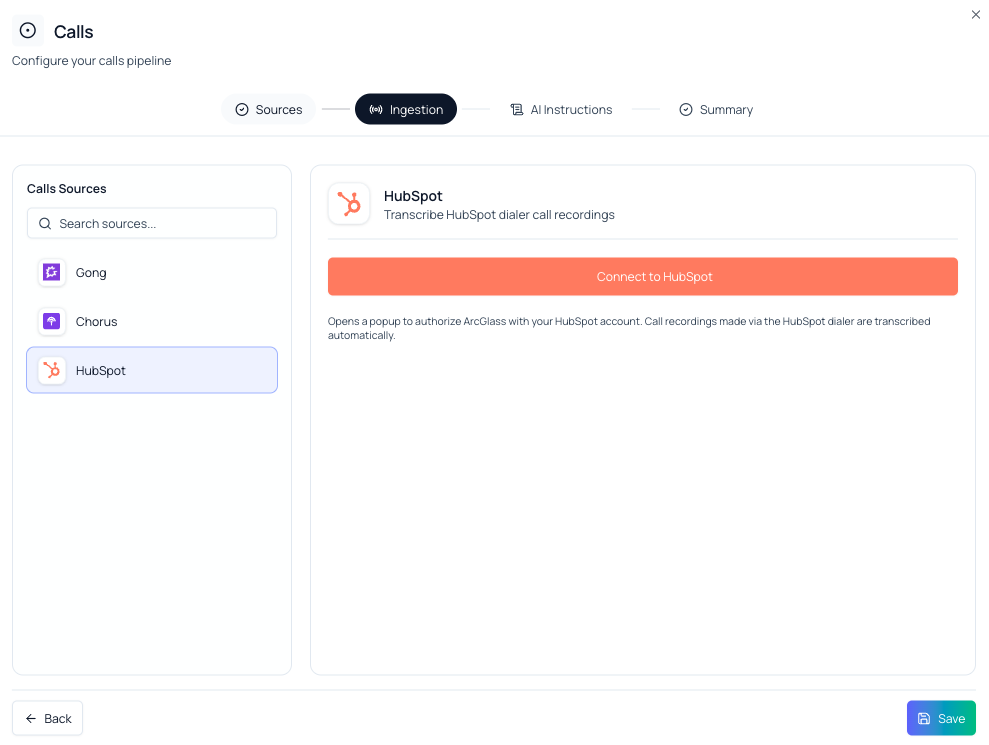
Select HubSpot as your call source
- Create a Calls pipeline. In ArcGlass, create a pipeline and choose Calls — the “Configure your calls pipeline” wizard opens.
- Open the Ingestion step. Under Calls Sources, select HubSpot.
- Review the panel. HubSpot transcribes dialer call recordings automatically — there is no API key to enter.
02
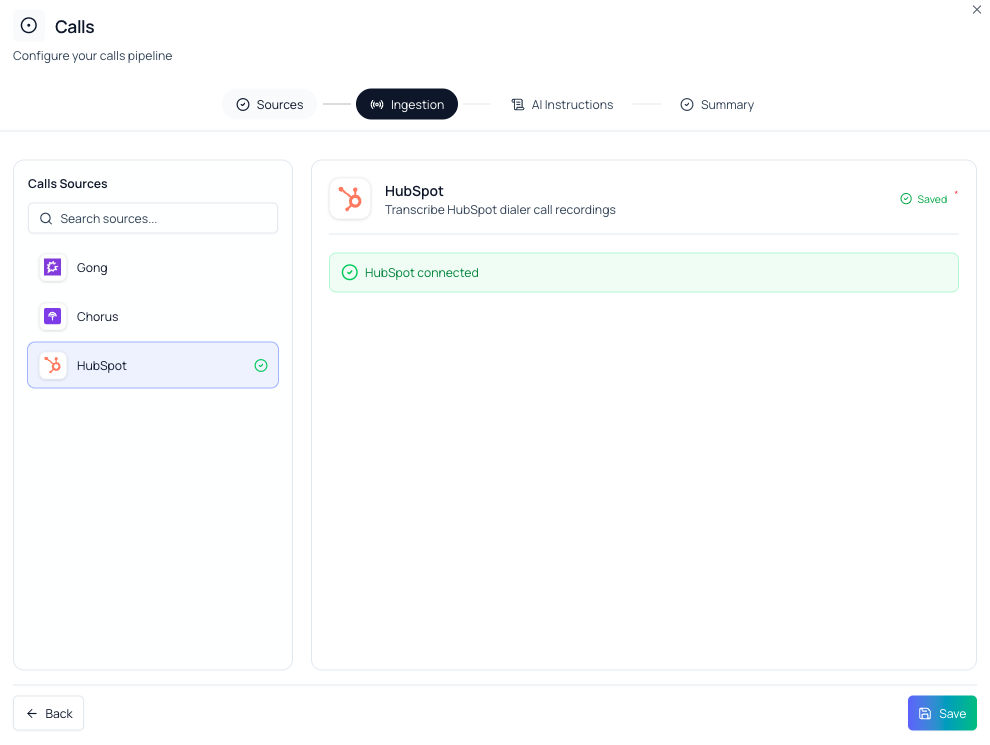
Connect and authorize in HubSpot
- Select Connect to HubSpot. A popup opens to authorize ArcGlass with your HubSpot account.
- Choose the account. If prompted, pick the HubSpot account (portal) whose calls ArcGlass should process.
- Approve access. ArcGlass requests read-only scopes, including calling transcripts, then returns you with HubSpot connected.
Tip — Granting calling-transcript access is what lets ArcGlass read recorded calls. Without it, calls can't be transcribed or analyzed.
03
Finish and create the pipeline
- Continue through AI Instructions. Keep the defaults unless ArcGlass provides different settings.
- Review the Summary. Confirm the details and create the pipeline. Dialer recordings begin syncing automatically.
Confirm it worked
Confirm onboarding is complete
Open Pipeline Runs
The newly created Calls pipeline should appear in the list.
Verify status
The pipeline should show Active. ArcGlass pulls dialer recordings, transcribes them, and analyzes them as they become available.
Check the Calls page
Analyzed calls appear on the dedicated Calls page — pickup and voicemail funnel, dispositions, and messaging insights.
You're done when
The Calls pipeline is Active with HubSpot connected, and your dialer recordings are syncing into the Calls page.
If something's off
Quick troubleshooting
Connect popup doesn't open
Allow pop-ups for ArcGlass and confirm a browser extension isn't blocking it, then select Connect to HubSpot again.
Access is rejected in HubSpot
A HubSpot Super Admin may need to approve the app, or grant you permission to install connected apps.
Calls sync but aren't analyzed
Confirm you approved calling-transcript access in the popup and that the calls have dialer recordings.
No calls appear
Only calls recorded through the HubSpot dialer are pulled. Confirm recording is enabled and recent calls have finished processing.
Older calls are missing
A standard run pulls recent calls first. Contact support@arcglass.io to backfill your full call history.