Your conversations never train a model. Tenant-isolated, encrypted, yours.

Getting started · Technical onboarding

Set up ArcGlass and your first pipeline

Create your account, verify your user, and stand up your first Calls and Meetings pipeline using the ZIP file provided for onboarding. About five minutes, start to finish.

Create your account → Download PDF 2-min video · ~5 min setup

2-minute onboarding walkthrough · account setup to first pipeline

Before you begin

What you'll need

Four things get you through the whole flow. Have them ready and this takes about five minutes.

Console access
The ArcGlass signup or login URL.
A user account
A work email address and access to its inbox.
Verification
The ability to receive the six-digit validation code.
Input file
The onboarding ZIP file containing meeting transcripts.
At a glance

The three-step flow

01

Create account

Enter the work email and user name.

02

Verify user

Enter the six-digit code sent by email.

03

Create pipeline

Upload the provided ZIP and create the pipeline.

Step by step

The full walkthrough

Use the work email address as the username throughout. Leave defaults unchanged unless ArcGlass provides different instructions.

01

Create and verify the user account

  1. Open the signup page. From the login screen, select Sign up.
  2. Enter the work email and name. Click Continue with Email.
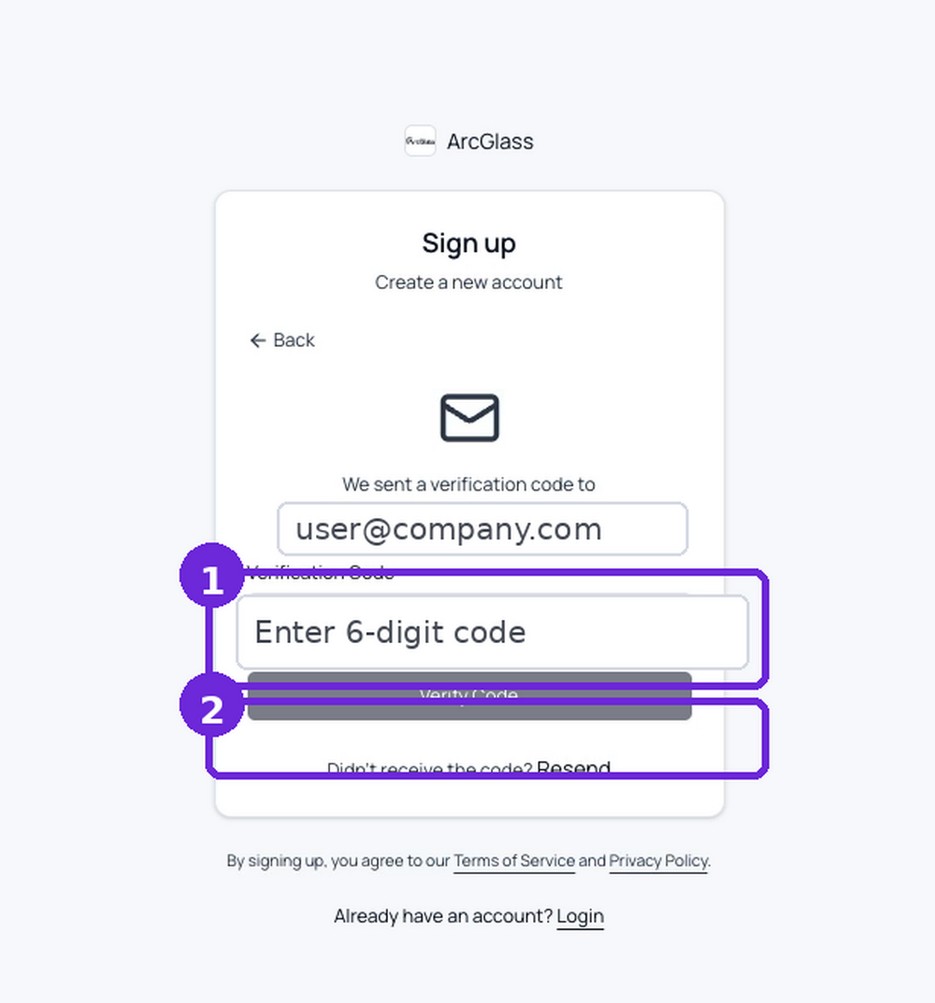
  3. Enter the six-digit code. Use the latest code sent to the user's inbox, then click Verify Code.
  4. Sign in. Successful verification returns you to ArcGlass and opens the dashboard.
Tip — if the code is rejected, select Resend and use the newest code. Older codes may no longer be valid.
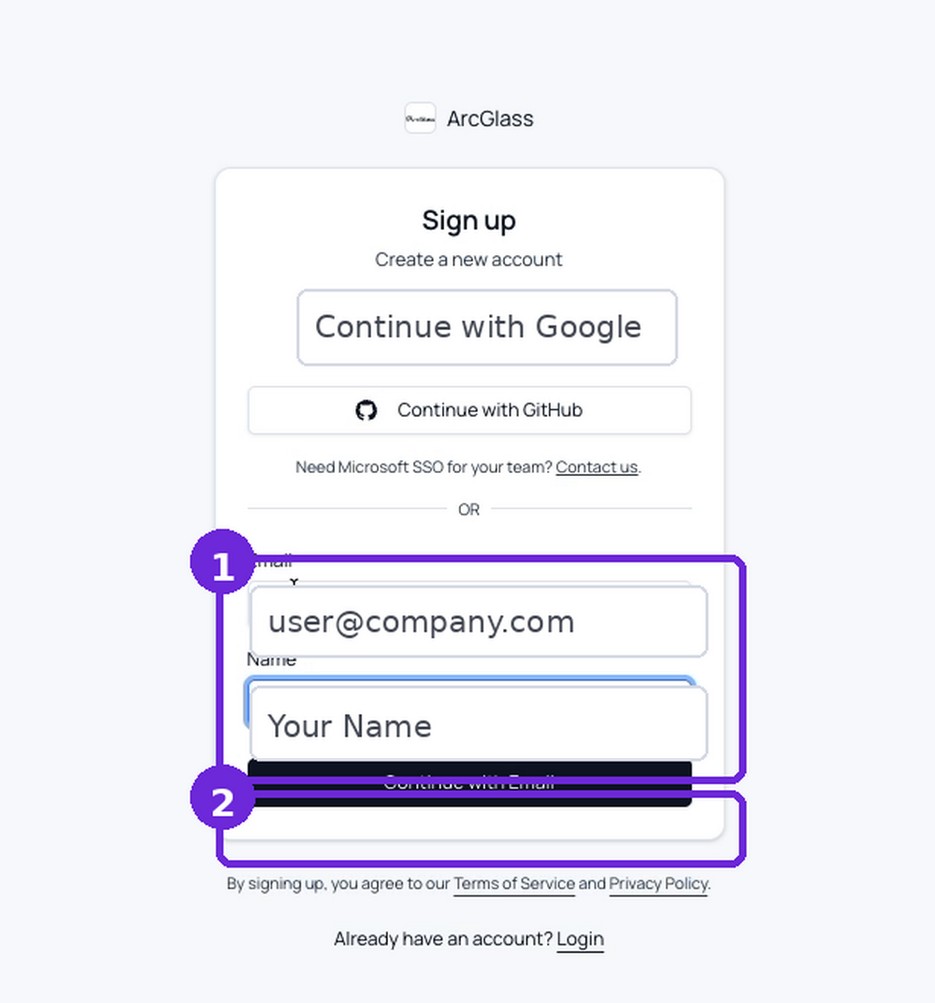
Sign-up screen: enter work email and name, then Continue with Email
Enter email and name.
Verification screen: enter the six-digit code and click Verify Code
Enter the verification code.
02

Start a Calls and Meetings pipeline

  1. Open Settings. Use the profile menu in the lower-left corner of the dashboard.
  2. Open Pipelines › Onboarding. Select Calls and Meetings.
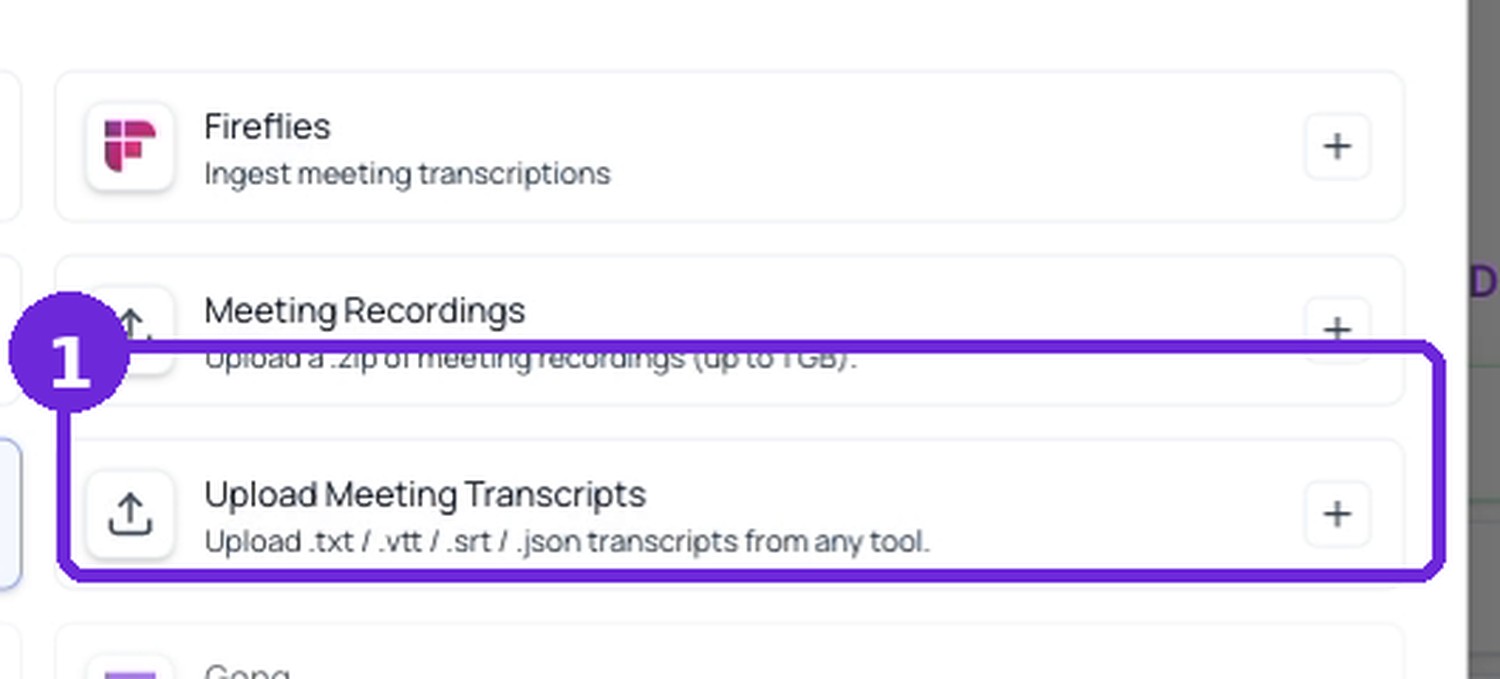
  3. Choose Upload Meeting Transcripts. This is the source used for the onboarding ZIP file. Continue to Ingestion.
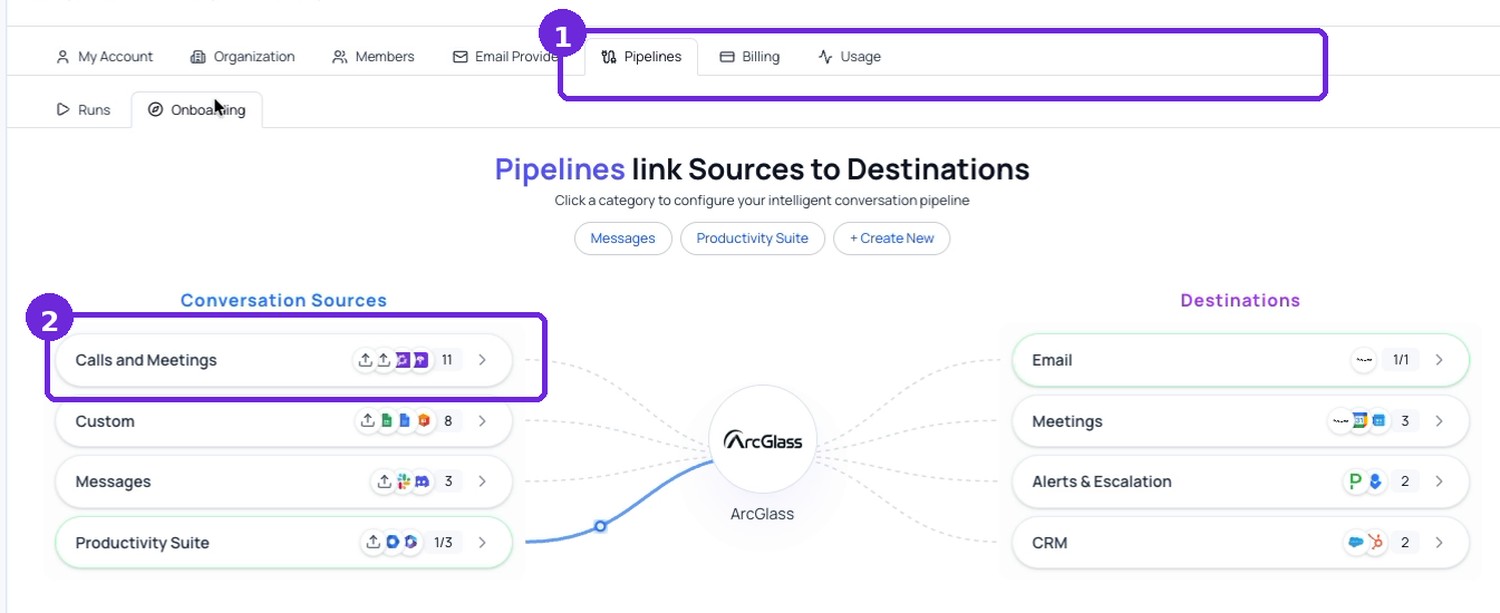
Settings, Pipelines, Onboarding tab, with Calls and Meetings highlighted as the conversation source
Open Settings › Pipelines › Onboarding, then select Calls and Meetings.
Source selection: choose Upload Meeting Transcripts, then continue to Ingestion
Select Upload Meeting Transcripts, then continue to Ingestion.
03

Upload the ZIP file and create the pipeline

  1. Upload the ZIP file. Click the upload area and select the file provided for onboarding. Confirm it appears under Selected Files.
  2. Keep Meeting transcripts enabled. Main Speaker Name is optional.
  3. Continue through the wizard. Save the ingestion settings, then proceed through AI Instructions and Destinations using the supplied defaults.
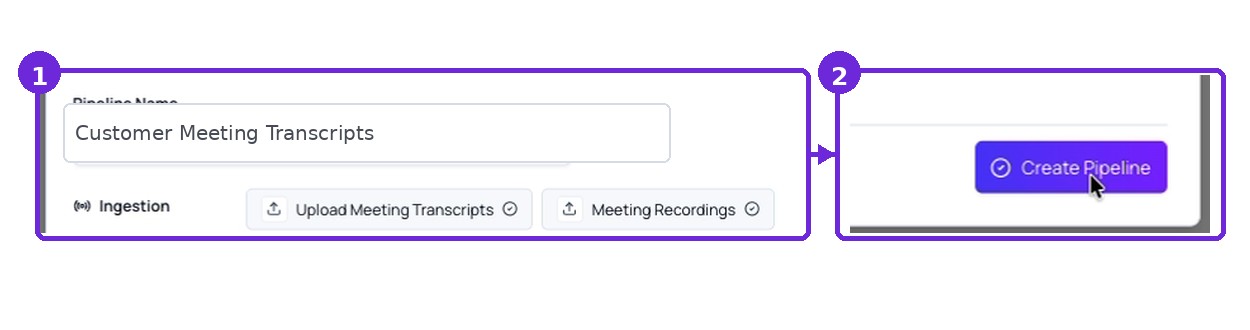
  4. Name and create the pipeline. Use a clear name, review the summary, and click Create Pipeline.
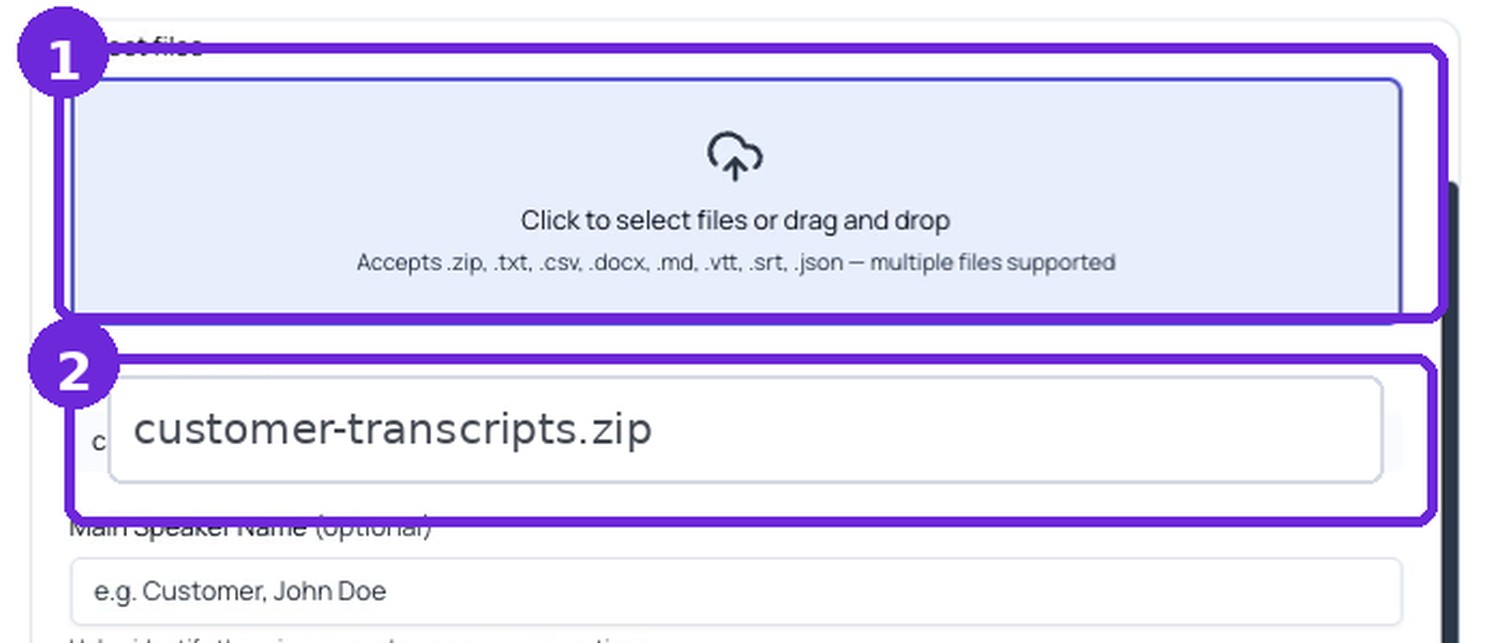
Upload area with the onboarding ZIP file showing under Selected Files
Upload the provided ZIP file and confirm it appears under Selected Files.
Pipeline name field and summary, with the Create Pipeline button
Enter a pipeline name, review the summary, and click Create Pipeline.
Confirm it worked

Confirm onboarding is complete

Open Pipeline Runs
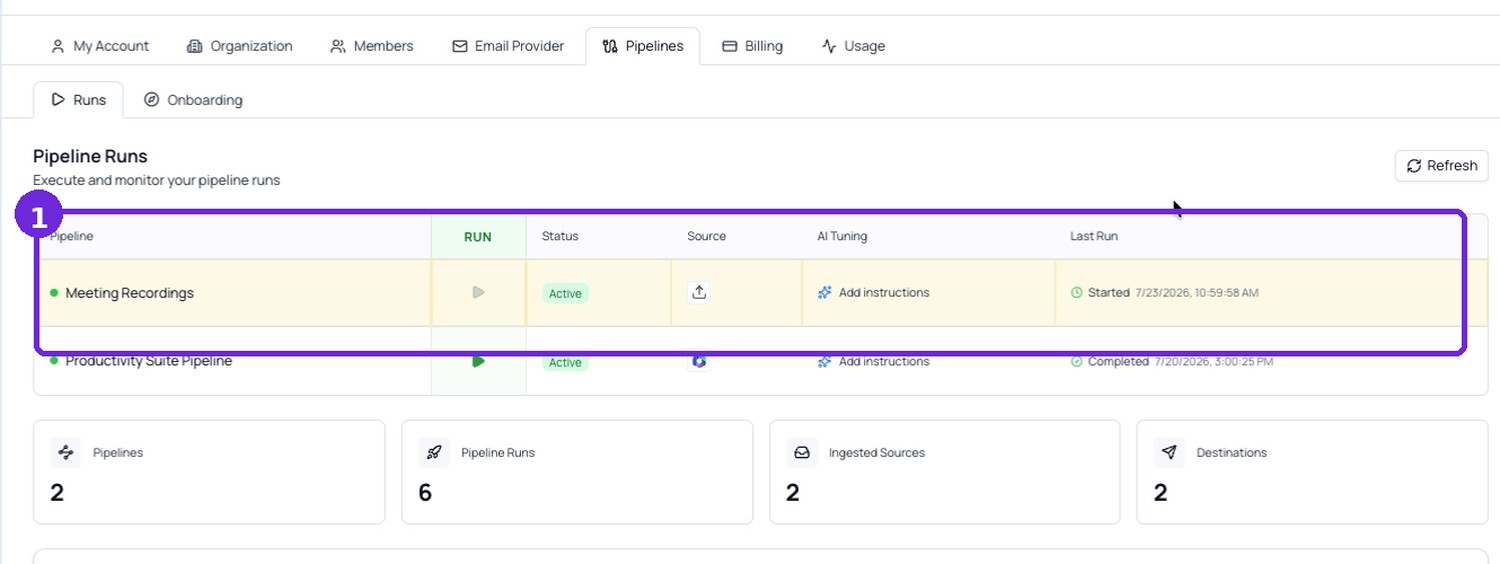
The new pipeline should appear in the list.
Verify status
The pipeline should show Active. The run may show Started while the ZIP is processed and Completed when processing finishes.
Pipeline Runs list showing the new pipeline as Active with processing started
Confirm the pipeline is active and processing has started.

You're done when

The user can sign in, the Calls and Meetings pipeline is Active, and the uploaded ZIP has started processing.

If something's off

Quick troubleshooting

No verification email
Check spam or junk mail, confirm the address, and select Resend.
Invalid verification code
Enter the newest six-digit code.
ZIP cannot be selected
Confirm the file has a .zip extension and contains transcript files.
Run remains Started
Wait for processing, then select Refresh on Pipeline Runs.