Enabling ArcGlass for your Google Workspace
A one-time, domain-wide setup that lets ArcGlass read the Gmail mailboxes, calendars, and Google Meet recordings you choose to ingest from, so it can analyze those conversations and meetings. The ArcGlass wizard walks you through it — for the most part you're clicking Next, pasting one Client ID and its scopes into the Google Admin console, and hitting Verify. Takes about 2 minutes. Requires a Google Workspace Super Administrator, because it's authorized through Domain-wide Delegation.
What you're approving
ArcGlass connects to Google Workspace through Domain-wide Delegation — you authorize one ArcGlass service account (identified by its Client ID) to call Google APIs on behalf of accounts in your domain. Every scope ArcGlass requests is read-only:
| Scope | What it's for |
|---|---|
gmail.readonly | Ingest emails from the mailboxes you configure in a pipeline. |
calendar.readonly | Ingest meeting metadata (attendees, times, titles) from the calendars you configure. |
meetings.space.readonly | Read Google Meet meeting-space metadata for the meetings you ingest. |
drive.meet.readonly | Read Google Meet recordings and transcripts stored in Drive for the meetings you configure. |
contacts.readonly | Resolve attendee and sender identities against your address book. |
admin.directory.user.readonly | Look up users in your Workspace directory to attribute conversations to the right people. |
admin.directory.group.readonly | Read group membership to resolve teams and distribution lists. |
These are the standard read-only Google API scopes for an enterprise integration. ArcGlass only reads data from the mailboxes, calendars, and meetings you explicitly configure inside a pipeline — Domain-wide Delegation is what Google requires to grant the access, but the actual data access is gated per-pipeline.
What ArcGlass will and won't do
- Read mailbox, calendar, and meeting content only for the accounts you add to a pipeline in the ArcGlass UI.
- Read emails, meetings, and recordings created during the date range you configure.
- Never read mailboxes, calendars, or meetings that aren't part of a configured pipeline.
- Never send mail on your behalf (the app does not request send access).
- Never modify or delete mail, calendar events, contacts, or Drive files (every scope is read-only).
- Never share your data with any other ArcGlass customer.
You can revoke access at any time from Admin console → Security → Access and data control → API controls → Domain-wide Delegation by deleting the ArcGlass Client ID — which immediately stops all ingestion for your domain.
Step-by-step setup
1. Open the onboarding page in ArcGlass
Signed in to ArcGlass, go to:
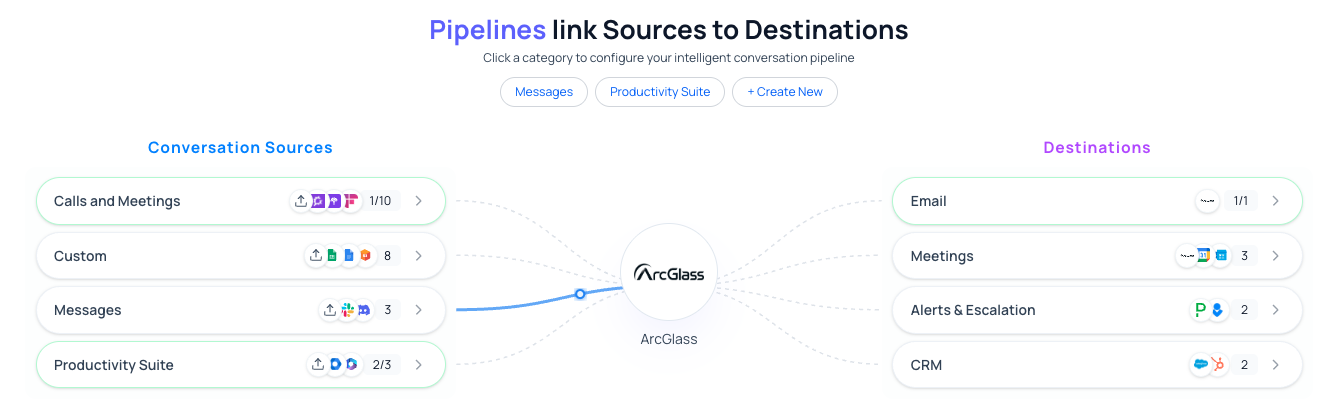
This is the Pipelines view that links your sources to destinations. Click Productivity Suite.
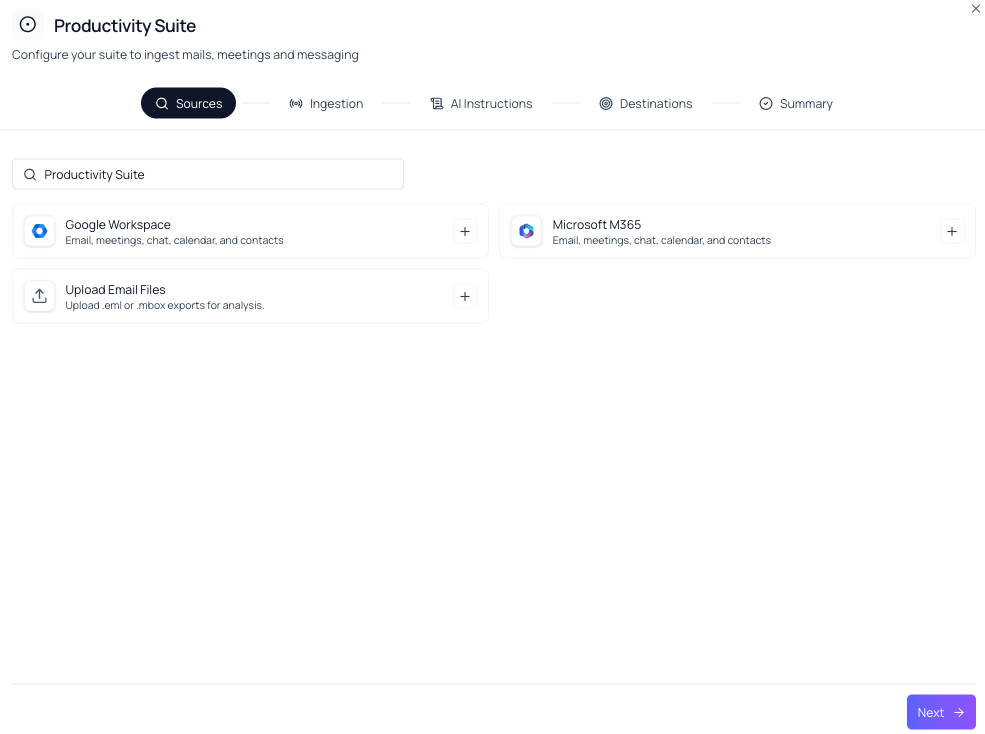
In the Sources step, choose Google Workspace and click Next.
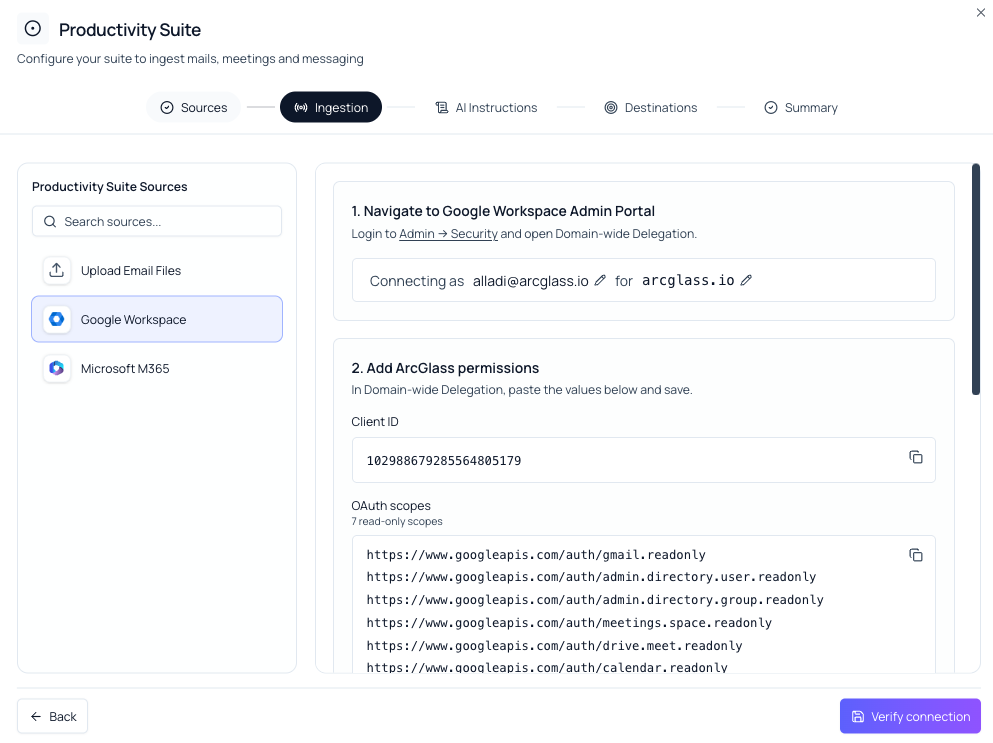
ArcGlass shows the connection instructions, including your Client ID and the list of read-only OAuth scopes to authorize.
2. Open Domain-wide Delegation in the Google Admin console
In the ArcGlass panel, click the Admin → Security link (or sign in to the Google Admin console yourself as a Super Administrator) and open Security → Access and data control → API controls → Domain-wide Delegation.

3. Add the ArcGlass client and scopes
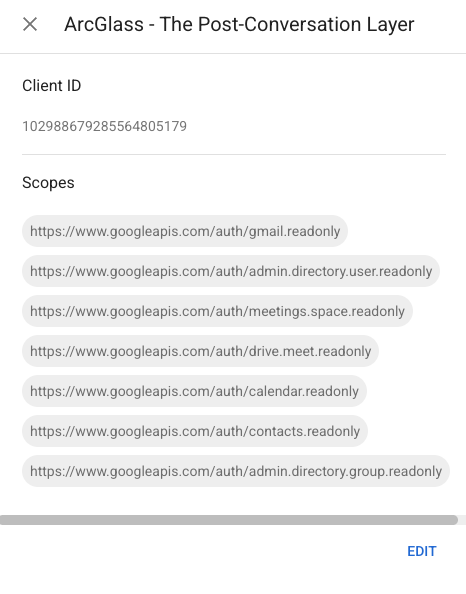
Click Add new. Paste the ArcGlass Client ID (also shown on the ArcGlass screen — copy it from there so it's always current):
102988679285564805179Then paste the seven read-only OAuth scopes as a comma-separated list:
https://www.googleapis.com/auth/gmail.readonly,
https://www.googleapis.com/auth/calendar.readonly,
https://www.googleapis.com/auth/meetings.space.readonly,
https://www.googleapis.com/auth/drive.meet.readonly,
https://www.googleapis.com/auth/contacts.readonly,
https://www.googleapis.com/auth/admin.directory.user.readonly,
https://www.googleapis.com/auth/admin.directory.group.readonly
Click Authorize to save the delegation.
4. Verify the connection in ArcGlass
Back on the ArcGlass screen, click Verify connection. ArcGlass performs a read-only test call against your domain and confirms the delegation is in place. That's it — you can now configure which mailboxes, calendars, and meetings to ingest.
5. Approve the mailboxes to ingest
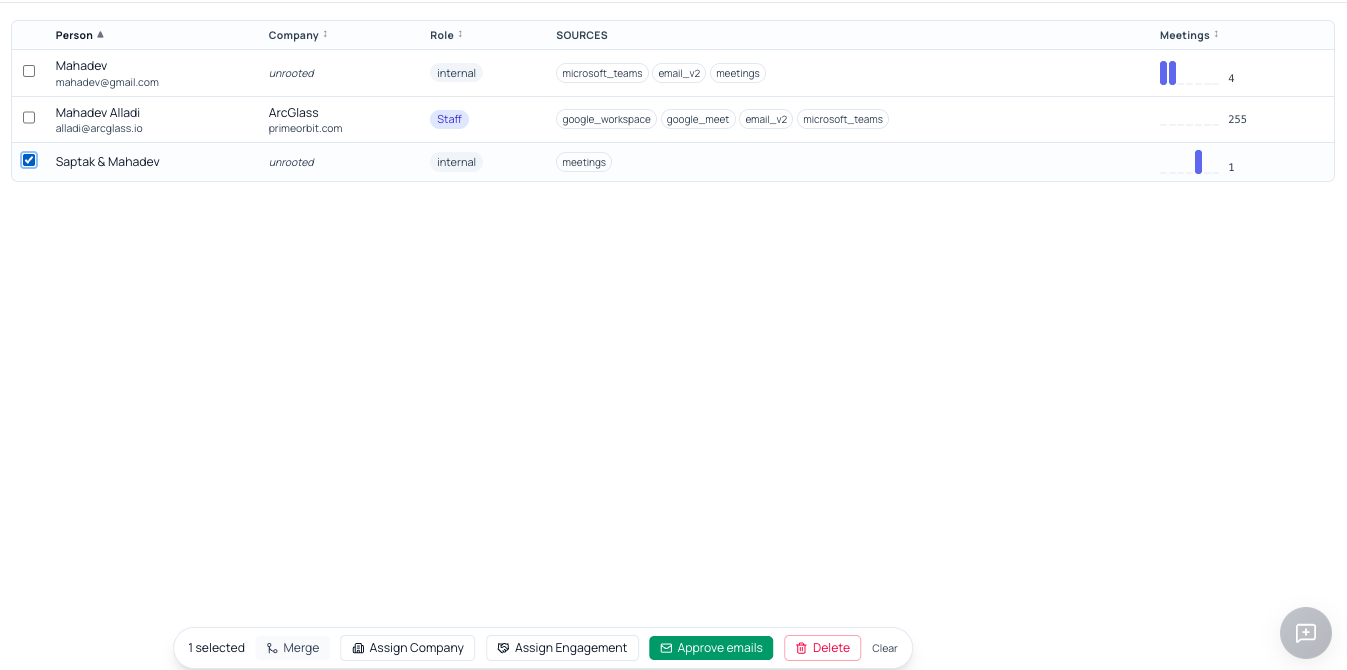
One small task remains. In the ArcGlass sidebar, go to People → Internal. This lists the people discovered in your Workspace. Tick the checkbox next to each person whose mailbox you want to ingest, then click Approve emails in the action bar at the bottom. Only the mailboxes you approve here are ever read. That's it — you're done.
What happens next
- Ingestion is opt-in: authorizing the delegation does not start any data flow on its own. Ingestion only begins after you approve mailboxes and configure a pipeline with the calendars, meetings, and date range to include.
- Access is domain-wide but usage is scoped: Domain-wide Delegation lets ArcGlass reach any account in your domain, but ArcGlass only ever reads the accounts you explicitly add to a pipeline.
Troubleshooting
| You see | What to do |
|---|---|
| "Verify connection" fails right after saving the delegation | Domain-wide Delegation can take a few minutes to propagate across Google. Wait 2–3 minutes and click Verify again. |
| unauthorized_client / access_denied | The Client ID or one or more scopes don't match. Re-open the delegation entry and confirm the Client ID and all seven scopes exactly match the ArcGlass screen. |
| You can't find Domain-wide Delegation in the Admin console | You're not signed in as a Super Administrator, or you're in the wrong section. It lives under Security → Access and data control → API controls. |
| Ingestion works for mail but not for Meet recordings or directory lookups | A scope is missing. Add the remaining scopes from step 3 to the same Client ID entry and Authorize again. |
| Need to revoke | Admin console → Security → API controls → Domain-wide Delegation → delete the ArcGlass Client ID. |
Security and compliance
- Where the access lives: the authorization is a Domain-wide Delegation entry in your Google Admin console. You retain full visibility and revoke control there at any time.
- Read-only: all seven scopes ArcGlass requests are read-only. ArcGlass cannot send, modify, or delete anything in your Google Workspace.
- What's stored on the ArcGlass side: the connection metadata only — no passwords. Mailbox, calendar, and meeting content read by pipelines is stored encrypted at rest in our managed Postgres on Render (US region), separated per customer-org at the row level.
- Subprocessor list, DPA, security questionnaire: available from your ArcGlass account team on request.
Questions
Reply to your ArcGlass account contact, or email support@arcglass.io.